
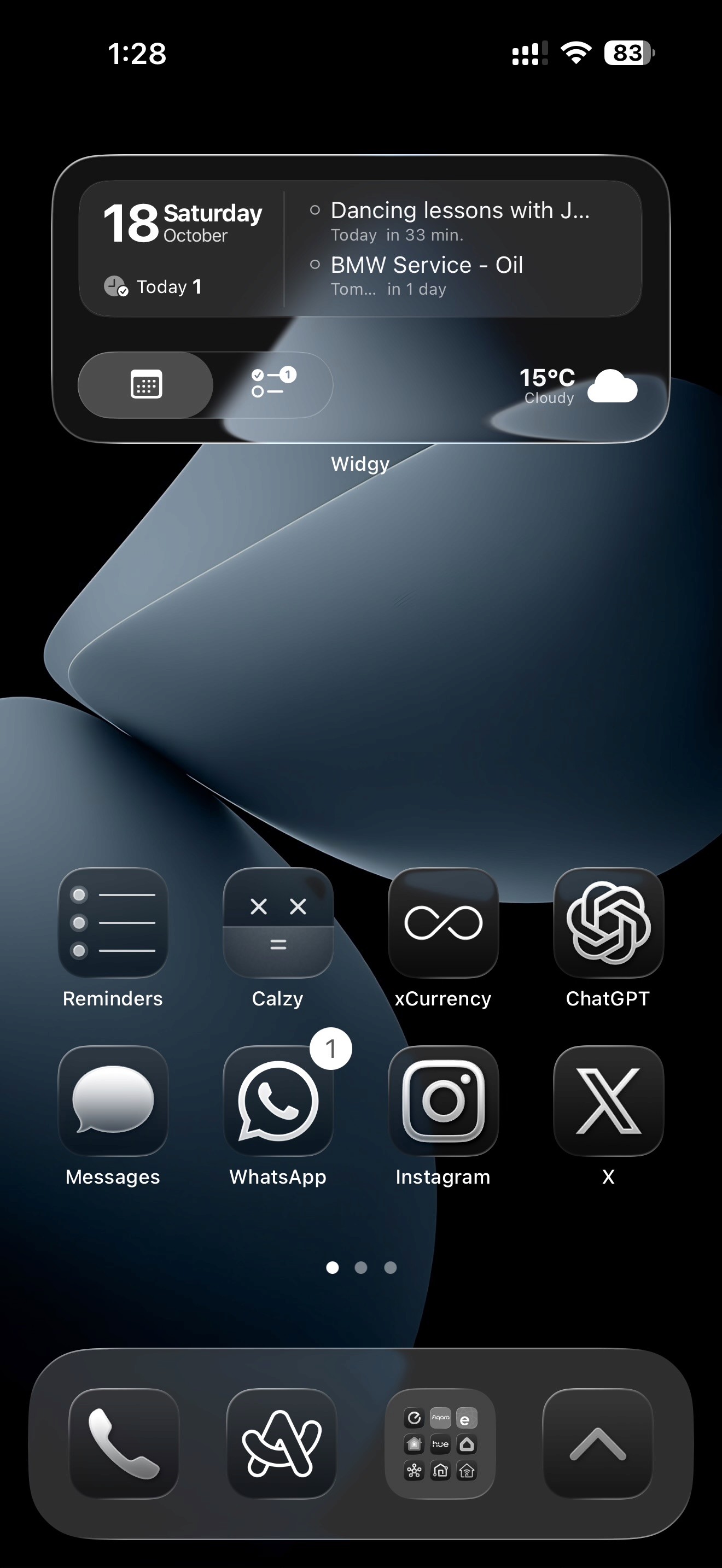
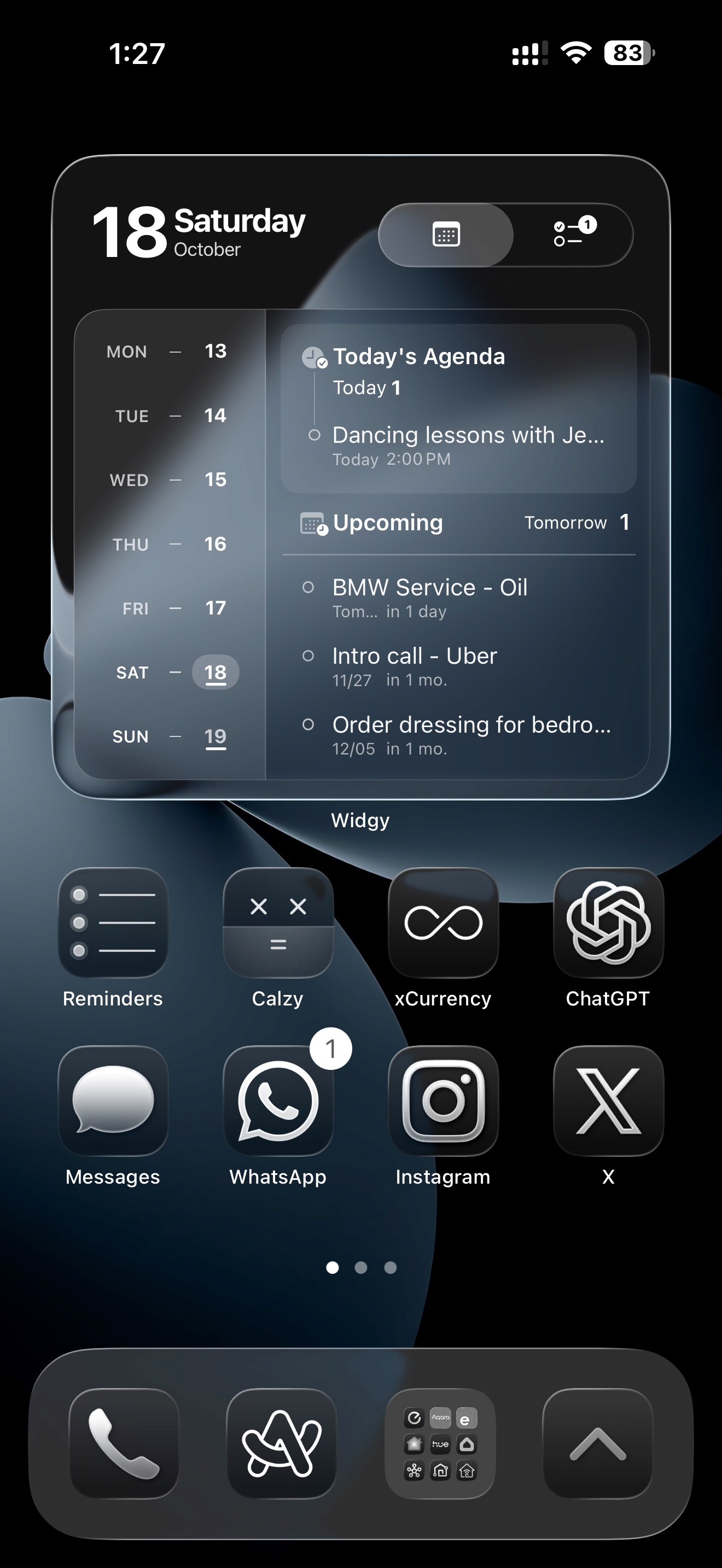
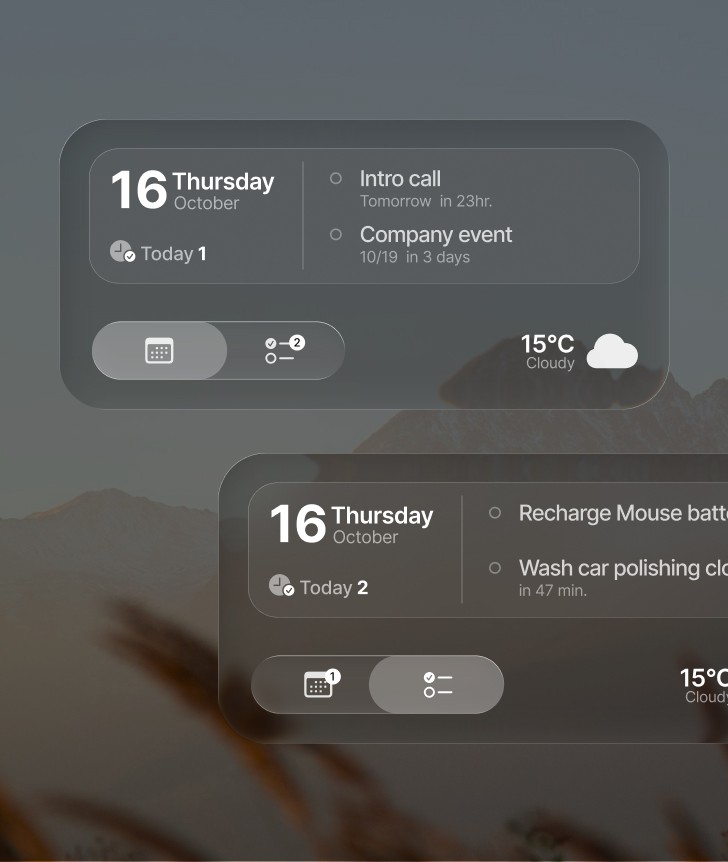
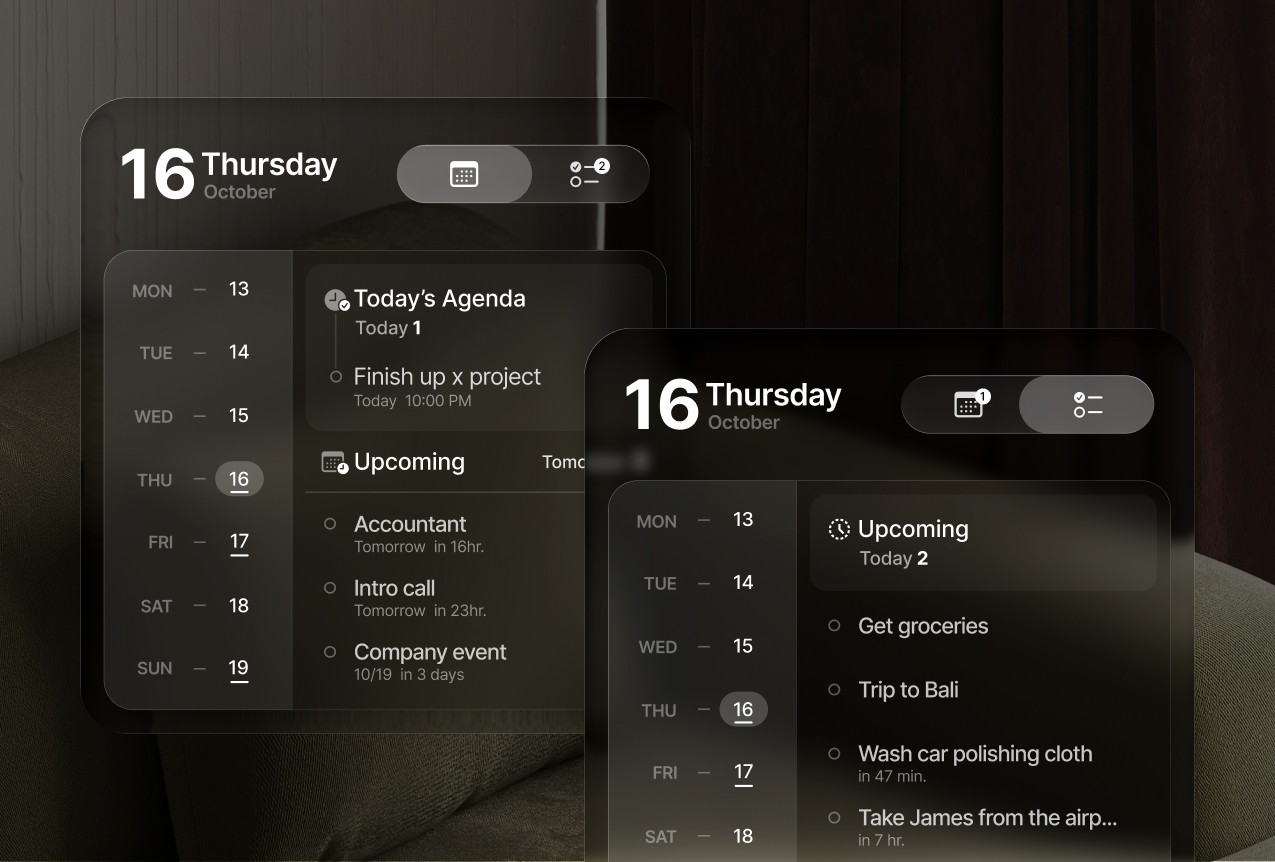
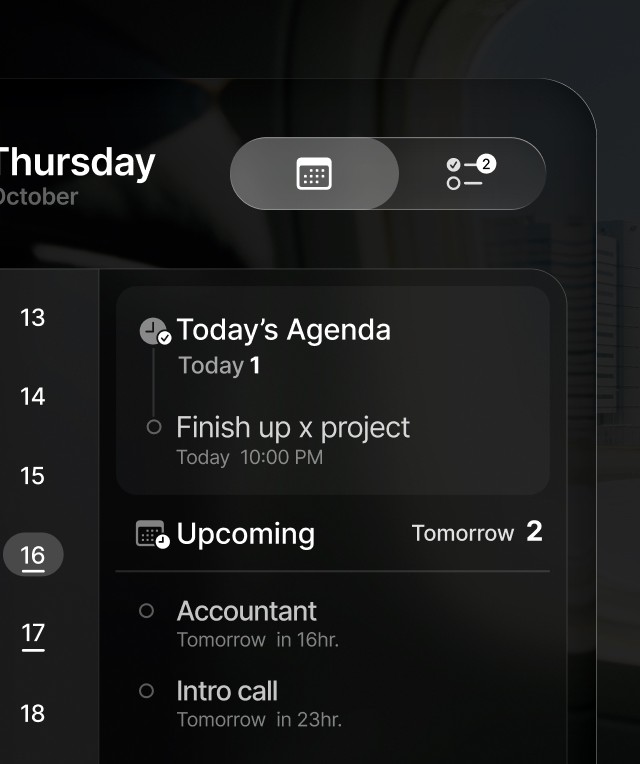
Beautiful liquid glass visual details to go hand in hand with iOS 26 native look.
Beautiful smooth animation when switching from Calendar to Reminders making it feel native.
How to apply
1
Install Widgy
Open the App Store on your iPhone.
Search for Widgy Widgets and install it.
This app lets you create or import custom home screen and lock screen widgets.
2
Import the Widget.
Inside Widgy: Choose Import → Tap Import .widgy from Files.
Select Agenda medium or large.
3
Assign a Widget to a Slot.
In Widgy, tap the Manage tab. Choose the size you want (Medium/Large).
Tap an empty slot. Select the widget from “Yours” to put it in that slot. This makes the widget available when adding to the home screen later.
4
Add Widget to Your Home Screen.
Long-press your Home Screen to enter jiggle mode.
Tap the + in the top corner. Search for Agenda Medium or Agenda Large.
Choose the widget size and slot you assigned.
Tap Add Widget.
How to apply Liquid Glass transparency.
1
On your Home Screen, long-press to enter jiggle mode.
2
Move to a blank page (no icons) with the wallpaper visible.
3
Take a screenshot of that wallpaper area.
You’re capturing the exact pixels that will appear behind the widget.
4
Open Widgy and go to Manage.
Tap Setup Transparency (top of screen).
Choose Add Wallpaper and select the screenshot you just took.
This tells Widgy what wallpaper background to use for transparency matching.
Wait for Widgy to load all resources and apply everything, then you can close the app.
Note: If you change your actual wallpaper later, you need to take a new blank screenshot and repeat the transparency setup so Widgy matches the new wallpaper.
How to Change Calendar & Reminder Sources
1
Open the Widget and go to Widgy/Watchy settings.
2
Select Agenda Sources.
3
Confirm your sources.
Common Gotchas
If events don’t appear, check iOS permissions:
Settings → Privacy & Security → Calendars / Reminders → WidgyIf you recently added a new calendar account, restart Widgy so it re-detects sources.